Title here
Summary here

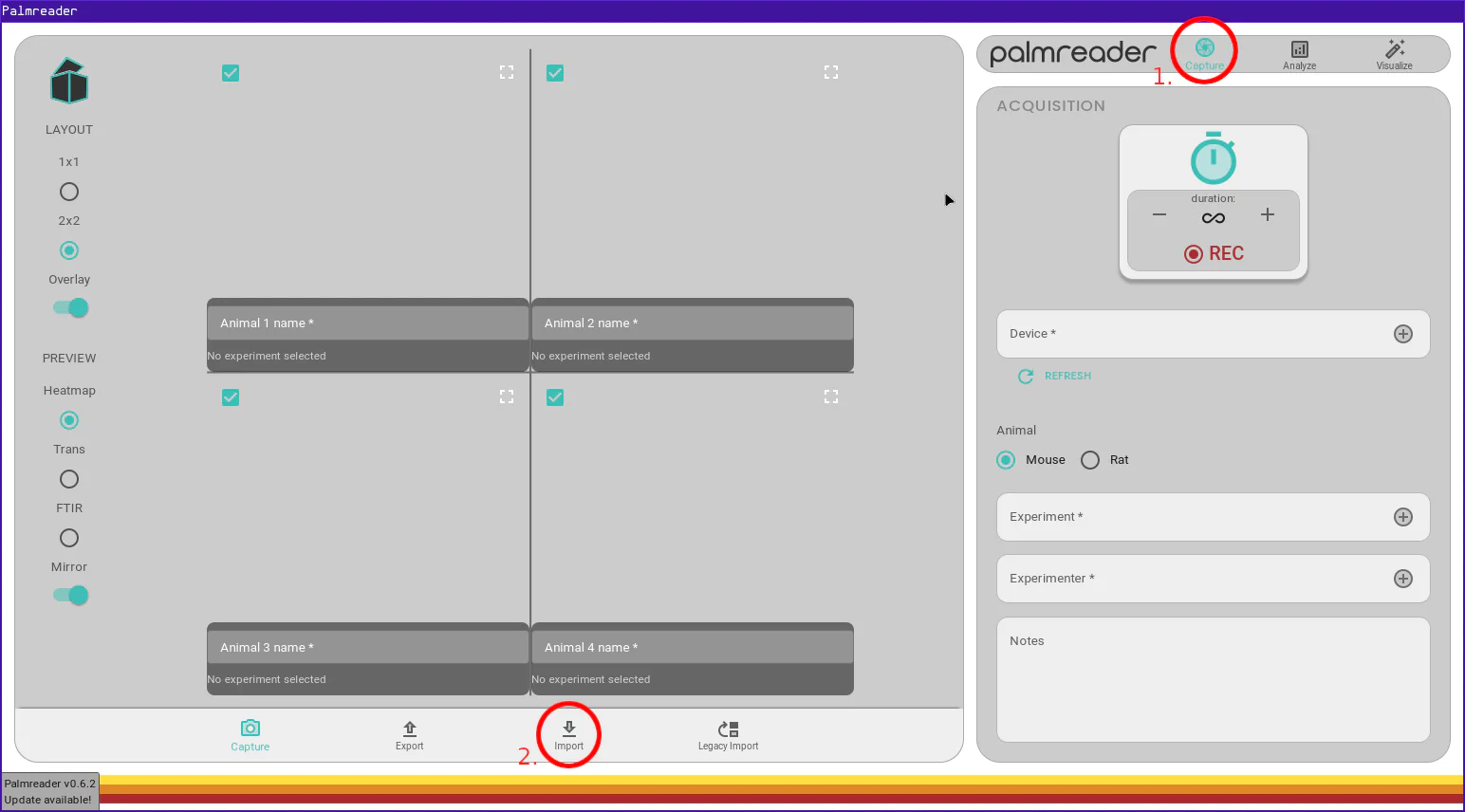
Note
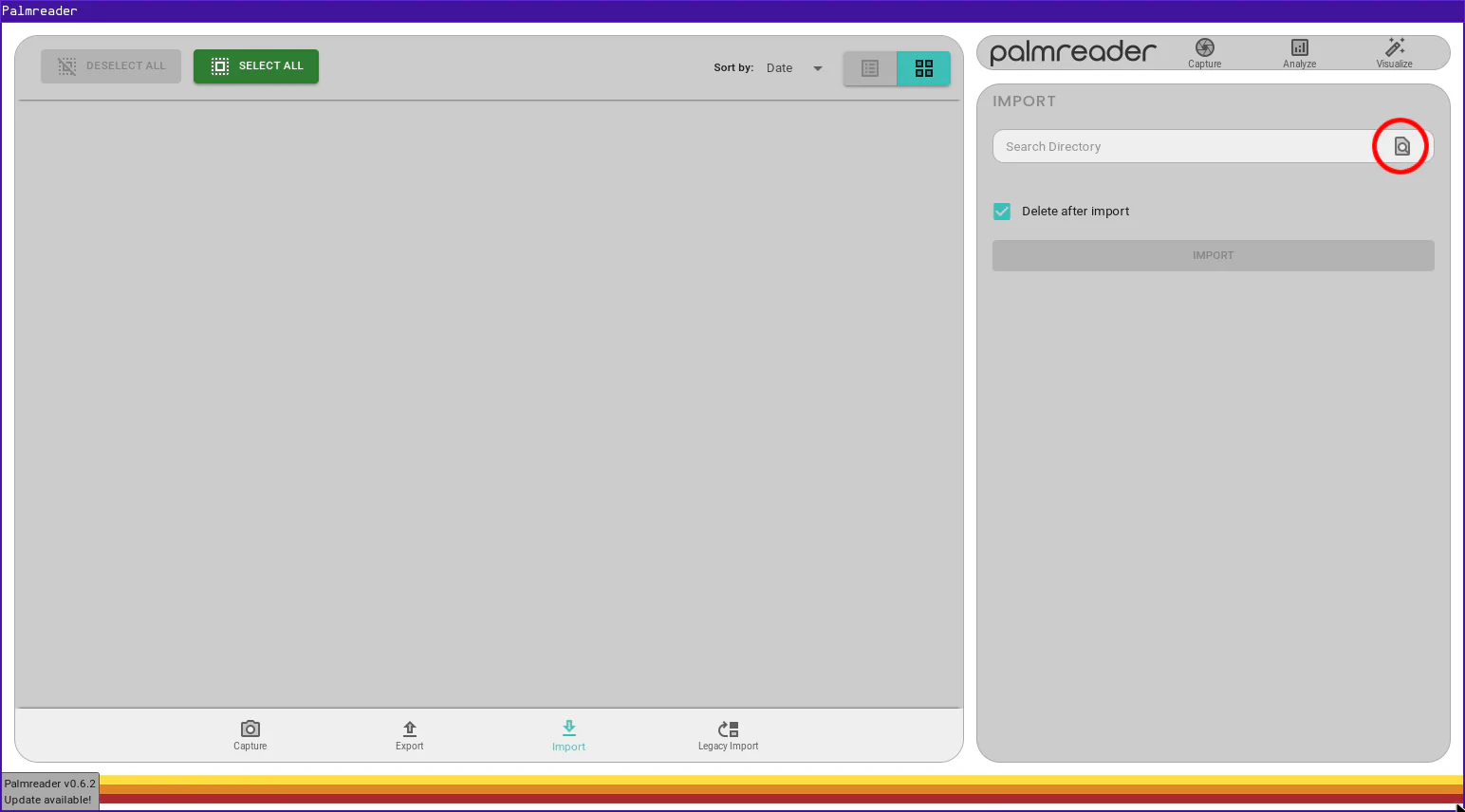
This directory is searched recursively, so any nested .plm files will be located, no matter how deeply nested they are. See Searching for more information.
Tip
If you wish to import all captures, simply press the “Select All” button at the top of the screen.
Like exports, imports are generally quick but the speed depends on the quantity and duration of the captures, as well as the speed of the storage media the .plm files are being imported from.
You may notice a checkbox labeled “Delete after import” that is checked by default. It is highly recommended that you leave this checked. If you want to keep a second copy of each capture in e.g. network storage, then it is fine to uncheck this. In such cases where having duplicates of a capture is necessary, it is best to ensure only one instance of Palmreader has this capture imported at any given time. This reduces the likelihood of diverging copies of a recording.
The search process searches recursively. This means that if you choose the directory search_dir/ and there exist a .plm file at search_dir/sub1/sub2/capture.plm, Palmreader will find it and display it in the capture list.