Title here
Summary here

This page is located at Analyze > Scoring.
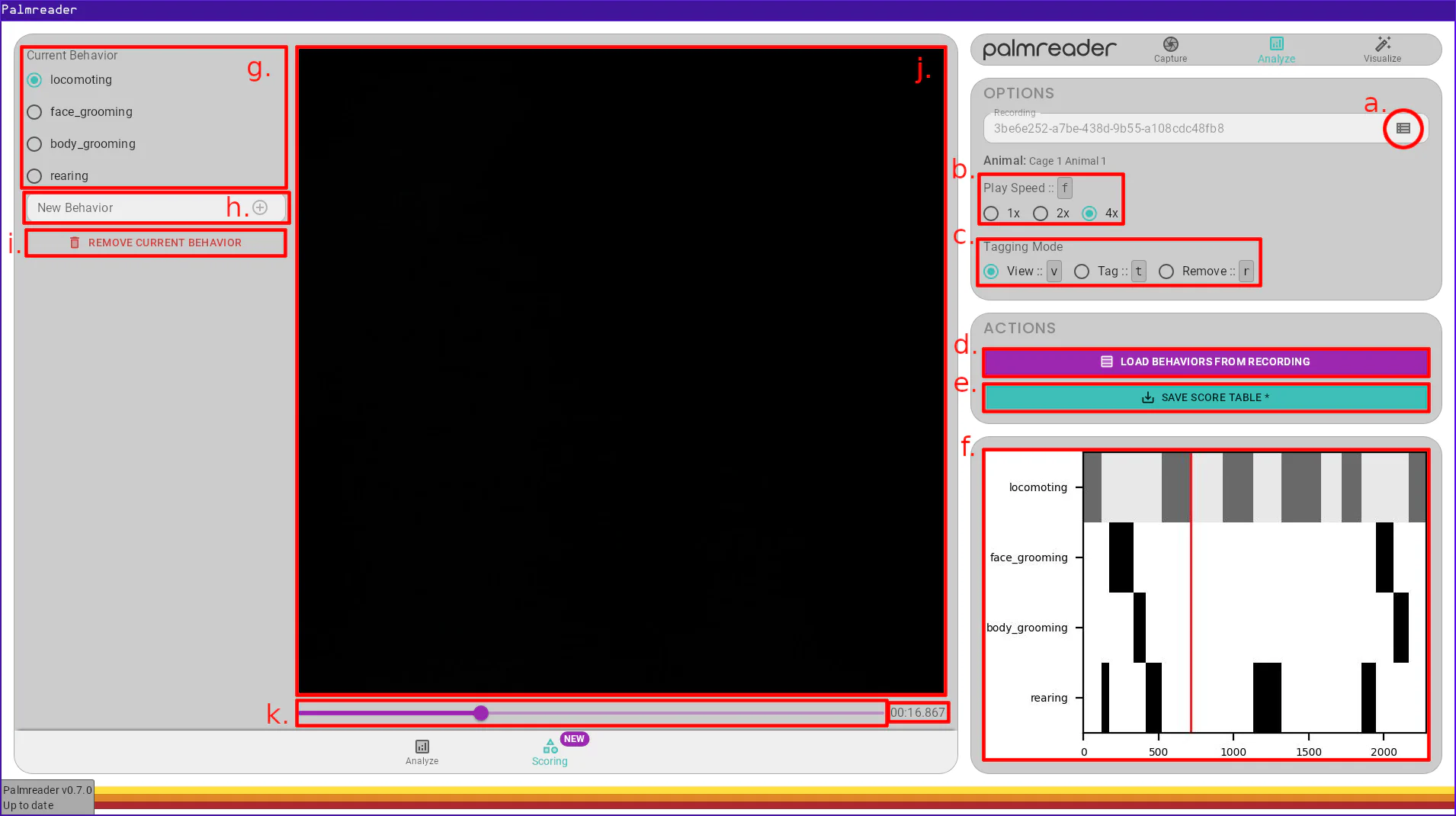
a. – Recording Selection ButtonThis button will open the dialog to select a recording. When you first open this page, this is how you will begin scoring. If you already have a recording selected, this will prompt for confirmation before switching recordings. This prompt will appear whether or not you have unsaved changes. Please save your score table before confirming if you want to keep the data.
b. – Play SpeedThese three options determine by how many frames the position will be moved when the arrow keys are used to seek through the video. “1x” is the default, and causes each press to progress a single frame. “2x” moves 2 frames, and “4x” moves 4 frames. This setting can be changed by pressing the F key.
c. – Tagging ModeThis option determines what will happen to the score table when one of the arrow keys is used to seek through the video. The modes are as follows:
Pressing the key corresponding to either “Tag” or “Remove” mode while currently in that mode will switch back to “View” mode. For example, if the mode is currently “View”, pressing T will switch to “Tag” mode, then pressing T again will switch back to “View” mode.
d. – Load Behaviors from RecordingThis button will open the same recording selection dialog as Item a.. Once a selection has been made, the list of behaviors used in that recording will be copied to the currently loaded recording. This button only copies the list of behaviors from the other recording, not the whole score table.
Warning
Loading behaviors from another recording will reset the score table. There is no prompt to confirm this is what you want, so please make sure you’ve saved the score table beforehand if you wish to keep the data.
e. – Save Score TableThis button will save the score table. If there are unsaved changes, this button will display an asterisk ("*") after the “SAVE SCORE TABLE” text. Score tables are saved alongside the recordings in the internal data structure, and will be loaded each time the current recording is opened on this page.
f. – The Score TableThis is a graph representing the current score table. The current position is denoted by a vertical red line through the axes. The currently selected behavior is shaded gray. The Y axis represents the behavior list and the X axis represents the frame number in the recording. Within each row (behavior), regions that are white are regions where the behavior is not occurring (untagged), and regions that are black (or gray if the behavior is selected) are regions where the behavior is occurring (tagged).
g. – The Behavior ListThis is a list of all behaviors that are currently being scored. The behavior with a blue dot to its left is the current behavior, and other behaviors can be selected by either clicking them or using the ↑ and ↓ arrow keys.
h. – New Behavior CreationTo add a new behavior, type its name into this textbox. Only alphanumeric characters, _ and - are allowed. Once the name is entered as desired, either press the Enter key or press the icon in the text box.
i. – Remove Current BehaviorPress this button to remove the currently selected behavior from the score table and behavior list. This button will be disabled if there is only one behavior in the list. If you want to start with a new behavior list, create your first behavior as the second item in the list using Item h. and then delete the first behavior afterwards.
j. – Frame PreviewThis is where the current frame will be displayed on the screen, and it is the current frame being labeled.
k. – Quick Seek and TimestampThe purple bar is a slider that can be used to quickly jump to any point in the recording. This slider will instantly switch back to “View” mode when used if another mode is enabled, and thus cannot be used to score behaviors.
The timestamp after the purple bar shows the current position in the format: [HH:]MM:SS.SSS where [HH:] will only be displayed if necessary.
This page has a set of keyboard shortcuts that can be used to operate the page without using the mouse. All keys can be held down to repeatedly trigger the operation, though most operations don’t produce meaningful behavior when repeated. They are the following: